Using the Configuration Data View
Use the Configuration data view to view, create, and edit * device configuration logs for a single selected gas device Node (gas meter, station meter, or chromatograph) with configuration data support. Configuration data is displayed for one selected Node at a time. Because each Node is configured with a variety of settings that impact the calculation of its measurement data (depending on the Node type and its specific circumstances), these device configuration details, and any changes made to them, are tracked and audited by the FMS. See CygNet Measurement Data Calculation for more information about recalculation implications of editing base condition values (base temperature or base pressure) or heating value basis.
*Note: Editing functionality is only available in systems licensed for FULL mode.
The records are always filtered by date. You can expand (+) and collapse (-) a selected record to view previous values. Only the most recent record for a point in time can be edited and saved. You can filter the type of configuration records viewed in the control by selecting to configure and use a filter via the control toolbar. See Configure filter on the control toolbar for more information.
Each row of the grid displays a single configuration log entry. Each column represents a category of data. The control toolbar and the context menu provide additional options to manage files and add, edit, or view associated configuration log entries.
Any configuration log entries included in the time window of the control (between and inclusive of the start and end dates) will be shown and are editable. If configuration log entries are present that are dated prior to the start date for the control, only the most recent of those records will be displayed and in that case will be read-only (non-editable).
Double-click any editable cell to edit configuration item values directly from the control, or right-click a log entry row to access options to create or edit configuration log entries for the selected record.
Note: If there are two related events with the same timestamp in the polled event set, these two related events (e.g. primary calculation method change and primary calculation method version change, or heating value change and heating value unit type change) will be combined into one Configuration record.
Columns
A large variety of data fields are available to be viewed in the grid columns of the configuration view. When you open a new Configuration view in the Configuration control, a default set of column headers is displayed. You can modify the default set by adding/removing desired data fields, and by reorganizing the column locations.
Columns can be reorganized for the most efficient viewing of data in the following ways.
- Hover over a fixed column edge to display an icon to reset column width. Drag the column to the desired width.
- Drag a column header left or right to the desired location.
- Drag a column header off the grid entirely to remove that data field from the view. The removed column header will appear on the field chooser.
- Drag a column header from the field chooser to the column header row to add that data field to the view.
The Log Date/Time column is always displayed, and cannot be removed. It is the column used for sorting, which is indicated by an up arrow in the column header box.
Default Columns - Gas Device Nodes
The following columns are displayed by default when you create a new Configuration control and select the Configuration view for a Gas Device Node.
| Default Configuration Column | Description |
|---|---|
|
Log Date/Time (t) |
Lists the date/time for the selected log record, followed by the time format indicated as (D) Device, (C) Contract, or (L) Local. Note: The grid is always sorted by date/time, therefore the Log Date/Time (t) column cannot be removed. It can be repositioned within the grid however. |
|
Log Source |
Lists the configuration data source for the selected log. Possible values are as follows.
Note: A new or copied configuration log entry will be marked as User Entered. |
|
Exception Count |
Lists the number of Exceptions in the format x(y) where: x=Number of exceptions against the master record (y)=Summary Total number of exceptions for this record, if different than the count against the master record |
|
Device Type |
Lists the device type |
|
Primary Calc |
Lists the primary calculation method used |
|
FPV Calc |
Lists the compressibility calculation method used |
|
Contract Hour |
Lists the contract hour setting (in hours) |
|
Heating Value Volume |
Lists the heating value, by volume |
Additional Column Options
The following columns can optionally be added to the configuration grid view from the field chooser.
| Additional Configuration Column | Description |
|---|---|
|
[Any valid FMS configuration item] |
For an extensive list of data items available for display using these custom columns, see the FMS Configuration Data Items table in the Devices section of this Help. The FMS Explorer Description column lists column header names as they appear in this control. |
|
Edit State |
Lists the edit state for the selected configuration log record. Possible values are as follows.
See Edit State in the CygNet Measurement Concepts topic for more information. |
|
Comments |
Lists any comments associated with the selected configuration log record. Since comments are generally optional, this column may or may not be populated for individual records. |
|
User ID |
Lists the ID of the operator who performed the change associated with the selected configuration log record. |
|
Audit Category |
Lists the audit category associated with the selected configuration log record. Audit categories are configured on the Admin menu. See Configuring Audit Categories for more information. |
|
For gas device data, shows the gas quality total composition, to provide a quick visual check of the sum of the component mole percent values, as percent or fraction (can also be seen in the configuration log entry on the Gas Quality page of the device-specific property page). See Configuration Entries for more information. |
|
|
[Custom - Any valid FMS configuration item] |
If enabled, up to ten custom configuration items can be defined. See Configuring Custom Device Data for more information about defining and enabling these custom parameters. For an extensive list of data items available for display using these custom columns, see the FMS Configuration Data Items table in the Devices section of this Help. The FMS Explorer Description column lists the column headers as they appear in this control. |

Context Menu
Right-click in the column header row to access the option to display/hide the Field Chooser so that you can customize which columns to display in the grid. See Using the Field Chooser for more information.
Right-click in the configuration view grid to access the following options.
| Option | Description |
|---|---|
|
Edit |
Edit a single configuration record. Right-click on a selected record to access the context menu, and then click Edit to change the selected configuration log record via the Edit Configuration Log Entry dialog box. Note: You can also double-click the row header to display the detailed dialog box to make edits. See Creating or Editing Configuration Log Entries for more information. |
|
Mass update |
Edit multiple configuration records. Click and drag to select a group of contiguous editable records, and then right-click the selections to access the context menu. Click Mass update to display the Update Configuration dialog box to change multiple configuration item values. See Creating or Editing Configuration Log Entries for more information. |
|
Create |
Add new records similar to existing records. Right-click on an existing record of the device type you want to add to access the context menu, and then click Create to add a new configuration log record of the same device type. The Create New Configuration Log Entry dialog box will be displayed for the same device type. The new record will initially default to the values in the selected existing configuration log record. See Creating or Editing Configuration Log Entries for more information. |
|
Create blank |
Add new records unlike existing records. Right-click anywhere in the grid to access the context menu, and then click Create blank to access device type selection for the new record. Click a device type to access the device specific Create New Configuration Log Entry dialog box to create a new configuration log record. See Creating or Editing Configuration Log Entries for more information. |
|
Define shading behavior. Right-click in the white space of the grid to access the context menu, and then click Shading to access display options. The selection determines which of the specified elements will have shading colors applied. Options are as follows.
Default value is Both Use the Shading colors option to select what colors to apply to the selected elements. |
|
|
Define shading colors. Right-click in the white space of the grid to access the context menu, and then click Shading colors to access the Shading Colors dialog box to select Foreground (text) and Background (cell) colors, from the drop-down menus, to apply to the grid. Options are as follows.
A preview of the selected shading colors appears on the dialog box, so you can review your selections prior to clicking OK. Use the Shading option to select what grid elements will have the selected color(s) applied. See Customizing Shading Colors below this table for more information. |
|
|
Decimal precision |
Define how many decimals to display in the grid. Right-click anywhere in the grid to access the context menu, and then click Decimal precision to access options for the grid display. Click the desired option, from 0 - 10 decimal places. Default value is 7 |
|
Send gas quality to device |
Run a Send Gas Quality command to send updated gas quality data based on the selected configuration log record. If a gas analysis record is available for the time period, the option is made available from the record in the Gas Analysis view. Right-click on a selected record to access the context menu, and then click Send gas quality to device to run a Send Gas Quality command for the selected Node. A dialog box will appear, to verify that you want to send the selected configuration log GQ data directly to the device. Click Yes to execute the command. See Send Gas Quality for more information about this command. |
Customizing Shading Colors
Customize or edit the color shading shown in the grid as follows. Right-click within the grid to access the context menu options, and then select Shading Colors to adjust your selections.
To Configure Shading Colors
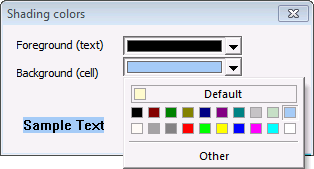
- Select Shading colors on the context menu to access the Shading Colors dialog box, where you can configure colors to use for Foreground (text) and/or Background (cell) shading on the grid.
-
For each shading option you have selected to use, Foreground (text) and/or Background (cell), click the selector arrow to access a drop-down menu of color options that you can apply to the grid. Shading color options are as follows.
- Default — Click Default to select to use the default colors of black (RGB 0.0.0) for Foreground (text) color, and pale yellow (RGB 255.250.205) for Background (cell) color.
- [Palette] — Click a desired color square from the range of preset colors provided in the palette to apply the selected color.
- Other — Click Other to select from a broad range of Standard or Custom colors. See Configuring Color for more information.
- Once all selections are made, click OK to save your choices.
Note: Shading color selections will be applied as determined by the value of the Shading option selected via the context menu.
More:
 Editing Gas Configuration Entries
Coriolis Configuration Properties
Orifice Configuration Properties
Turbine Configuration Properties
Ultrasonic Configuration Properties
Sending Gas Quality to a Device

